Troubleshooting Guide for
Social Media Account Connections
This guide covers common errors encountered when connecting Instagram, Facebook, and YouTube accounts to third-party apps (e.g., Hootsuite, Instagram Feed apps). It includes step-by-step resolutions for Instagram-specific issues, as well as notes on Facebook and YouTube.
Instagram Errors
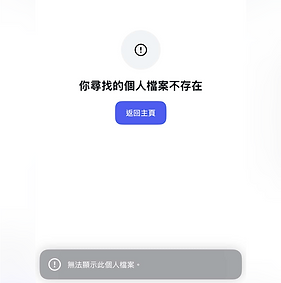
1. Error: "This profile is not available" or "User not found"
This is typically an Instagram app issue.
Resolution:
-
Instead of using mobile, connect your account using a computer. This can help bypass app-specific issues. Once the account is successfully connected via a computer, you can use the mobile to view and manage jobs
2. Error: Displaying 400 Error (e.g., "400 Session Invalid")
If you see this error on your screen, follow the steps below to resolve it.
Resolution:
1. Refresh Your Session
-
Log out of Instagram completely
-
Close the browser or app
-
Reopen Joli and try connecting again
2. Clear Cookies and Cache
-
On your device, clear browsing data
-
Try the connection again through the Joli app
3. Switch Networks
-
Move from Wi-Fi to mobile data, or vice versa
-
A different network can sometimes bypass the session error
If the resolutions above are not working, follow these steps to troubleshoot further:.
-
Go to the Instagram Accounts Center.
-
Click Add accounts under Profiles and add a Facebook account (you can remove it later).
-
Reconnect your Instagram account to the Connector Club app.
3. Error: Business Account is Needed
Instagram offers three profile types: Personal, Business, and Creator. Due to limitations from Instagram, you can only connect Business and Creator profiles to tools like Connector Club.
Resolution:
-
Convert a Personal or Creator profile to a Business account at any time.
-
For instructions, see: Convert an Instagram Personal profile to a Business profile.
Facebook Errors
Error: "No page in the account"
We can only connect Facebook Pages and Groups. Unfortunately, we cannot connect Facebook personal profiles or Facebook Professional profiles due to API restrictions. You can learn about the difference and how to check what you have here.
-
Checking your admin settings in your Facebook Page
-
To connect or refresh your Facebook Page and/or Instagram channel in Buffer, you’ll first need to be set up as an Admin of the Facebook Page with Full Control. Depending on how your Page was created, you may need to check your permissions in both your Page’s Professional Dashboard and in Meta Business Suite > Business Portfolio.